
Formatear una tarjeta SD/Windows
From Hacks Guide Wiki
More actions
Esta es una sección complementaria para formatear una tarjeta SD a FAT32.
Esta página es solo para usuarios de Windows. Si no estás en Windows, ve a las páginas de Linux o Mac.
Choose your SD card size
What You Need
- La versión más reciente de SD Memory Card Formatter
- La versión más reciente de guiformat
Instrucciones
- Inserta tu tarjeta SD en tu computadora
- Si la tarjeta SD tiene archivos y carpetas, copia todo a una carpeta en tu computadora
- Abre
SD Card Formatter Setup(el archivo.exe) en el archivo .zip que descargaste con privilegios de Administrador, e instala el programa - Abre
SD Card Formatterdesde el Menú Inicio - Selecciona la letra de unidad de tu tarjeta SD en "Seleccionar tarjeta"

Asegúrate de seleccionar la letra de unidad correcta, de lo contrario, podrías accidentalmente eliminar la unidad incorrecta! - Asegúrate que el "Formateo Rápido" este seleccionado
- Presiona "Formatear"
- Presiona "OK"
- Espera a que el formateo termine
- Presiona "OK"
- Cierra SD Card Formatter
- Abre
guiformat.exe - Selecciona la letra de unidad de tu tarjeta SD en "Unidad"
Asegúrate de seleccionar la letra de unidad correcta, de lo contrario, podrías accidentalmente eliminar la unidad incorrecta! - Selecciona un tamaño en "Tamaño de unidad de asignación"
- If the SD card is 64GB, choose 32768
- If the SD card is larger than 64GB, choose 65536 (note that if GUIFormat reverts to 32768, this does not mean it selected the wrong cluster size!)
- Ensure that "Quick Format" is selected
- Click "Start"
- Click "OK"
- Wait for the format to finish
- Click "Close"
- If the SD card had any files and folders on it before the format, copy everything back from your computer, unless you were linked to this by another guide that needs the SD to be formatted and blank
 |
Todavía no estás listo! Tu tarjeta SD será formateada a exFAT en este punto. Los siguientes pasos la formatearan a FAT32. |
|
To confirm that your SD card was formatted correctly, navigate to This PC, right-click the SD card drive, and select Properties. Ensure that the file system is set to FAT32. |
Common errors with guiformat
Failed to open device: GetLastError()=32
Close everything that may be using the SD card, such as any File Explorer windows. If it does not resolve the issue, try formatting the card to NTFS, then run GUIFormat again.
GetLastError()=1117
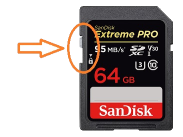
Your SD card write-protection switch may be enabled. The lock must be flipped upwards to allow writing to the SD card (including formatting).
"en" dir="ltr" class="mw-content-ltr">32GB or smaller=
What You Need
- The latest version of SD Memory Card Formatter
Instructions
- Insert your SD card into your computer
- If the SD card has any files and folders on it, copy everything to a folder on your computer
- Run
SD Card Formatter Setup(the.exefile) in the downloaded .zip file with Administrator privileges, then install the program - Run
SD Card Formatterfrom the Start Menu - Select your SD card’s drive letter for "Select card"
Make sure you choose the correct drive letter, otherwise you might accidentally erase the wrong drive! - Ensure that "Quick Format" is selected
- Click "Format"
- Click "OK"
- Wait for the format to finish
- Click "OK"
- Close SD Card Formatter
- If the SD card had any files and folders on it before the format, copy everything back from your computer, unless you were linked to this by another guide that needs the SD to be formatted and blank
|
To confirm that your SD card was formatted correctly, navigate to This PC, right-click the SD card drive, and select Properties. Ensure that the file system is set to FAT32. |
SD Card not formatting or has some other issue.
Refer to the SD Clean guide.