
Wii U:Recovering from a CBHC brick
From Hacks Guide Wiki
More actions
Recovering from a CBHC brick
Requirements
- Preferably a modded Switch or Raspberry Pi Pico (see supported devices on the UDPIH page)
- A PC (preferably Windows but I think you can use any OS)
- An SD Card compatible with a Wii U (the one that you should have
Files to download
- UDPIH for your appropriate device (see supported devices)
- If you are using a Nintendo Switch, please download it using this link instead.
- Recovery_Menu
- https://github.com/GaryOderNichts/recovery_menu/releases
- If you don't get any TV output during this guide, please download
recovery_menu_dc_initinstead and rename it torecovery_menu
SD Preparation
- Put the downloaded
recovery_menuon the root of the SD Card.
Flash UDPIH to your device
If you are using a Pi Pico / Pico 2 / Any supported device that isn't a Switch
- Flash the appropriate file to the appropriate device. This part of the guide will be focusing on the Pi Pico 1 and 2 but any Linux based device with USB emulation should work.
- Hold the BOOTSEL button of your Pico while plugging it into the PC. It will show up as a flash drive with the following name:
RPI-RP2 - Drag and drop the correct .uf2 file inside of your Pico. Disconnect it and it will reboot. Do not turn it off from now on.
If you are using a modded Nintendo Switch (vulnerable to RCM)
- Open any RCM injector of your choice (the most popular ones are TegraRCMGui, JTegraNX and CrystalRCM).
- Put your switch into RCM mode
- Choose the .bin file for your Nintendo Switch and hit inject.
- A new screen should pop up with multiple buttons from a list. To select something, press Power. To navigate around, press the volume buttons.
On the Wii U
- Put the SD Card containing the
recovery_menuat the root of it. It must be formatted in FAT32. Follow this guide to format it correctly. - If you are using a Nintendo Switch, it is now time to Run the UDPIH gadget.
- Power on the Wii U. As soon as you see the Wii U logo, plug in the UPDIH device. It may take multiple tries, be patient.
- As soon as the light is purple, you should be good to go. The menu should've loaded but if you get a distorted screen or even no TV output, retry it. If still nothing, download
recovery_menu_dc_initas said in the 3rd step of Files to download.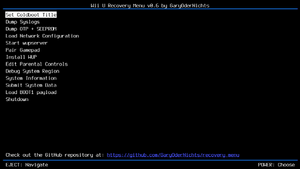
Main menu of Recovery_Menu.Credits to GaryOderNichts for this screenshot.Click the image to zoom! - Unlike in the minute menu, to navigate, you should use Eject and Power to select/choose an option.
- Select the
Set Coldboot Titleoption. - You should now see multiple options to set as your Coldboot title (which basically means what you want to boot to).
- Select the Wii U Menu of your appropriate console region:
Wii U Menu (JPN) - 00050010-10040000Wii U Menu (USA) - 00050010-10040100Wii U Menu (EUR) - 00050010-10040200
- Confirm the selection if it hasn't been already confirmed.
- Once you're back at the main menu, shutdown the console.
