
Formater une carte SD/Windows
From Hacks Guide Wiki
More actions
Ceci est une section complémentaire sur comment formater une carte SD en FAT32.
Cette page est seulement pour les utilisateurs de Windows. Si vous n'utilisez pas Windows, jetez un œil aux pages Linux ou Mac.
Choose your SD card size
What You Need
- La dernière version de SD Memory Card Formatter
- La dernière version de guiformat
Instructions
- Insérez votre carte SD dans votre ordinateur
- Si la carte SD contient des fichiers et des dossiers, copiez-les tous vers un dossier sur votre ordinateur
- Lancez
SD Card Formatter Setup(le fichier.exe) présent dans l'archive .zip téléchargée avec les droits Administrateur, puis installez le programme - Lancez
SD Card Formatterdepuis le Menu Démarrer - Sélectionnez la lettre de lecteur de votre carte SD dans le champ "Select card"

Assurez-vous de choisir la bonne lettre de lecteur, sinon vous risquez d'effacer accidentellement le mauvais lecteur ! - Assurez-vous que "Quick Format" est sélectionné
- Cliquez sur "Format"
- Cliquez sur "OK"
- Attendez que le formatage se termine
- Cliquez sur "OK"
- Fermez SD Card Formatter
- Lancez
guiformat.exe - Sélectionnez la lettre de lecteur de votre carte SD dans le champ "Drive"
Assurez-vous de choisir la bonne lettre de lecteur, sinon vous risquez d'effacer accidentellement le mauvais lecteur ! - Select a size for "Allocation unit size"
- If the SD card is 64GB, choose 32768
- If the SD card is larger than 64GB, choose 65536 (note that if GUIFormat reverts to 32768, this does not mean it selected the wrong cluster size!)
- Ensure that "Quick Format" is selected
- Click "Start"
- Click "OK"
- Wait for the format to finish
- Click "Close"
- If the SD card had any files and folders on it before the format, copy everything back from your computer, unless you were linked to this by another guide that needs the SD to be formatted and blank
 |
Ce n'est pas encore fini! Votre carte SD est dorénavant formatée en exFAT. Les étapes suivantes vont la formater en FAT32. |
|
To confirm that your SD card was formatted correctly, navigate to This PC, right-click the SD card drive, and select Properties. Ensure that the file system is set to FAT32. |
Common errors with guiformat
Failed to open device: GetLastError()=32
Close everything that may be using the SD card, such as any File Explorer windows. If it does not resolve the issue, try formatting the card to NTFS, then run GUIFormat again.
GetLastError()=1117
Your SD card write-protection switch may be enabled. The lock must be flipped upwards to allow writing to the SD card (including formatting).
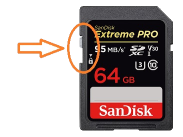
"en" dir="ltr" class="mw-content-ltr">32GB or smaller=
What You Need
- The latest version of SD Memory Card Formatter
Instructions
- Insert your SD card into your computer
- If the SD card has any files and folders on it, copy everything to a folder on your computer
- Run
SD Card Formatter Setup(the.exefile) in the downloaded .zip file with Administrator privileges, then install the program - Run
SD Card Formatterfrom the Start Menu - Select your SD card’s drive letter for "Select card"
Make sure you choose the correct drive letter, otherwise you might accidentally erase the wrong drive! - Ensure that "Quick Format" is selected
- Click "Format"
- Click "OK"
- Wait for the format to finish
- Click "OK"
- Close SD Card Formatter
- If the SD card had any files and folders on it before the format, copy everything back from your computer, unless you were linked to this by another guide that needs the SD to be formatted and blank
|
To confirm that your SD card was formatted correctly, navigate to This PC, right-click the SD card drive, and select Properties. Ensure that the file system is set to FAT32. |
SD Card not formatting or has some other issue.
Refer to the SD Clean guide.