
Formatting an SD card/Windows: Difference between revisions
From Hacks Guide Wiki
More actions
remove 3DS label myth part 2 |
Panencakes (talk | contribs) →What You Need: Added "Required" for SD Formatter since people seem to think it isnt required and renamed SD Formatter to its real name SD Memory Card Formatter |
||
| Line 9: | Line 9: | ||
== What You Need == | == What You Need == | ||
*<translate><!--T:4--> ''' | *<translate><!--T:4--> '''Required for all SD cards''': the latest version of <tvar name="sdformatter">[https://www.sdcard.org/downloads/formatter/sd-memory-card-formatter-for-windows-download/ SD Memory Card Formatter]</tvar></translate> | ||
*<translate><!--T:5--> '''For SD cards 64GB or larger''': The latest version of <tvar name="guiformat">[http://ridgecrop.co.uk/index.htm?guiformat.htm guiformat]</tvar></translate> | *<translate><!--T:5--> '''For SD cards 64GB or larger''': The latest version of <tvar name="guiformat">[http://ridgecrop.co.uk/index.htm?guiformat.htm guiformat]</tvar></translate> | ||
Revision as of 21:02, 15 August 2023
This is an add-on section for formatting an SD card to FAT32.
This page is for Windows users only. If you are not on Windows, check out the Linux or Mac pages.
What You Need
- Required for all SD cards: the latest version of SD Memory Card Formatter
- For SD cards 64GB or larger: The latest version of guiformat
Instructions
- Insert your SD card into your computer
- If the SD card has any files and folders on it, copy everything to a folder on your computer
- Run
SD Card Formatter Setup(the.exefile) in the downloaded .zip file with Administrator privileges, then install the program - Run
SD Card Formatterfrom the Start Menu - Select your SD card’s drive letter for "Select card"

Make sure you choose the correct drive letter, otherwise you might accidentally erase the wrong drive! - Ensure that "Quick Format" is selected
- Click "Format"
- Click "OK"
- Wait for the format to finish
- Click "OK"
- Close SD Card Formatter
- Run
guiformat.exe - Select your SD card’s drive letter for "Drive"
Make sure you choose the correct drive letter, otherwise you might accidentally erase the wrong drive! - Select a size for "Allocation unit size"
- If the SD card is 64GB, choose 32768
- If the SD card is larger than 64GB, choose 65536
- Ensure that "Quick Format" is selected
- Click "Start"
- Click "OK"
- Wait for the format to finish
- Click "Close"
- If the SD card had any files and folders on it before the format, copy everything back from your computer
Common errors with guiformat
Failed to open device: GetLastError()=32
Close everything that may be using the SD card, such as any File Explorer windows.
GetLastError()=1117
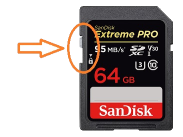
Your SD card write-protection switch may be enabled. The lock must be flipped upwards to allow writing to the SD card (including formatting).
- Insert your SD card into your computer
- If the SD card has any files and folders on it, copy everything to a folder on your computer
- Run
SD Card Formatter Setup(the.exefile) in the downloaded .zip file with Administrator privileges, then install the program - Run
SD Card Formatterfrom the Start Menu - Select your SD card’s drive letter for "Select card"
Make sure you choose the correct drive letter, otherwise you might accidentally erase the wrong drive! - Ensure that "Quick Format" is selected
- Click "Format"
- Click "OK"
- Wait for the format to finish
- Click "OK"
- Close SD Card Formatter
- If the SD card had any files and folders on it before the format, copy everything back from your computer