File Extensions on Windows/es: Difference between revisions
From Hacks Guide Wiki
More actions
// translation // Tags: Mobile edit Mobile web edit |
// translation // |
||
| Line 3: | Line 3: | ||
Esta es una sección adicional para desactivar el comportamiento por defecto de esconder las extensiones de archivos en Windows. | Esta es una sección adicional para desactivar el comportamiento por defecto de esconder las extensiones de archivos en Windows. | ||
Esto hará que encontrar los archivos referenciados en el resto de esta guía sea más fácil. | |||
< | <span id="Instructions"></span> | ||
== | == Instrucciones == | ||
<tabber> | <tabber> | ||
|-|Windows 11= | |-|Windows 11= | ||
Revision as of 17:06, 25 January 2026
Esta es una sección adicional para desactivar el comportamiento por defecto de esconder las extensiones de archivos en Windows.
Esto hará que encontrar los archivos referenciados en el resto de esta guía sea más fácil.
Instrucciones
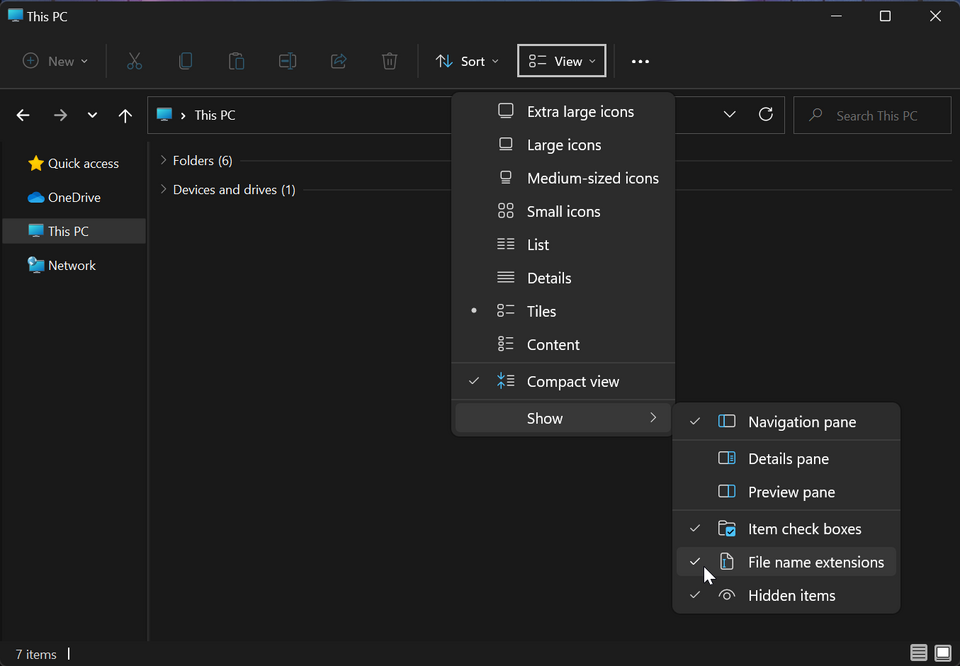
- Launch File Explorer by opening any directory, such as your SD card directory
- Click the "View" option in the toolbar
- Go to "Show"
- Click "File name extensions" to enable it

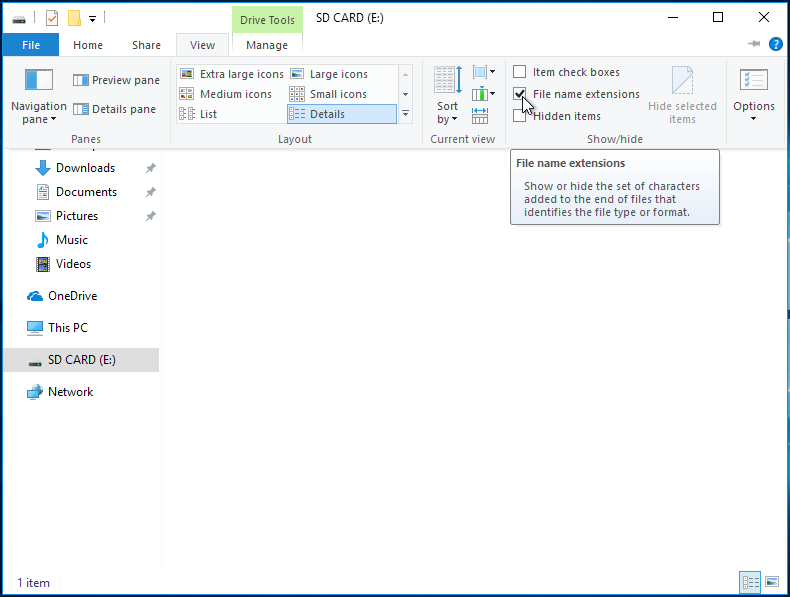
- Launch File Explorer by opening any directory, such as your SD card directory
- Click the "View" option on the ribbon menu
- Check the box labeled "File name extensions"

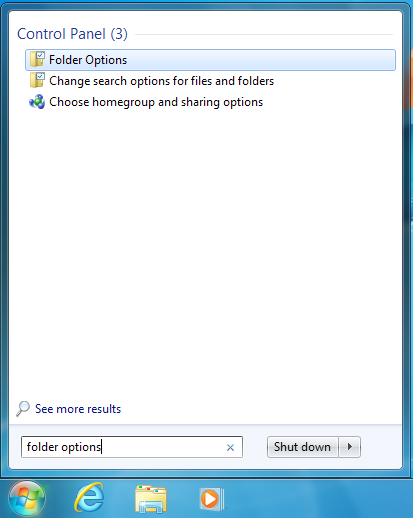
- Open the start menu by clicking on it or using the Windows key
- Search for "Folder Options" and select the corresponding result
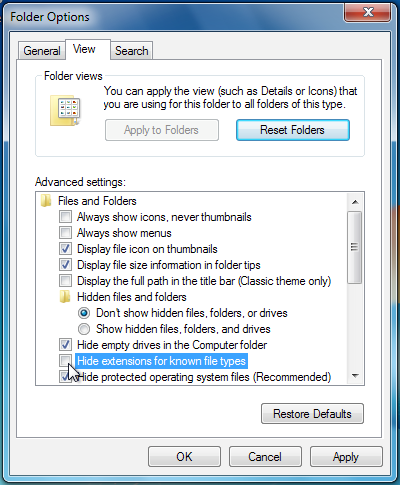
- Click the "View" option at the top of the Folder Options menu
- Uncheck the box labeled "Hide extensions for known file types"