File Extensions on Windows: Difference between revisions
From Hacks Guide Wiki
More actions
imported from 3dsguide:file-extensions-(windows) and used pandoc |
Marked this version for translation |
||
| (9 intermediate revisions by 2 users not shown) | |||
| Line 1: | Line 1: | ||
{ | <languages/> | ||
{{shortcut|FILEXT|FILEEXT}} | |||
< | <translate> | ||
<!--T:1--> | |||
This is an add-on section for disabling Windows’s default behavior of hiding file extensions. | This is an add-on section for disabling Windows’s default behavior of hiding file extensions. | ||
<!--T:2--> | |||
This will make it easier for you to find the referenced files in the rest of this guide. | This will make it easier for you to find the referenced files in the rest of this guide. | ||
< | == Instructions == <!--T:3--> | ||
</translate> | |||
<tabber> | |||
|-|Windows 11= | |||
<span | <span> | ||
# <translate><!--T:4--> Launch File Explorer by opening any directory, such as your SD card directory</translate> | |||
# <translate><!--T:5--> Click the "View" option in the toolbar</translate> | |||
# <translate><!--T:6--> Go to "Show"</translate> | |||
# <translate><!--T:7--> Click "File name extensions" to enable it</translate><br><translate><!--T:8--> [[File:Windows-11-file-extensions.png|700px]]</translate> | |||
</span> | |||
|-|Windows 10 / 8.1 / 8= | |||
<span | <span> | ||
# <translate><!--T:9--> Launch File Explorer by opening any directory, such as your SD card directory</translate> | |||
# <translate><!--T:10--> Click the "View" option on the ribbon menu</translate> | |||
# <translate><!--T:11--> Check the box labeled "File name extensions"</translate><br><translate><!--T:12--> [[File:Windows-10-file-extensions.png]]</translate> | |||
</span> | |||
|-|Windows 7= | |||
<span | <span> | ||
# <translate><!--T:13--> Open the start menu by clicking on it or using the Windows key</translate> | |||
# <translate><!--T:14--> Search for "Folder Options" and select the corresponding result</translate><br><translate><!--T:15--> [[File:Windows-7-folder-options-start-menu.png]]</translate> | |||
# <translate><!--T:16--> Click the "View" option at the top of the Folder Options menu</translate> | |||
# <translate><!--T:17--> Uncheck the box labeled "Hide extensions for known file types"</translate><br><translate><!--T:18--> [[File:Windows-7-folder-options.png]]</translate> | |||
</span> | |||
</tabber> | |||
{{hg imported|Guide_3DS}} | |||
{: | [[Category:General guides{{#translation:}}]] | ||
Latest revision as of 04:50, 10 August 2025
This is an add-on section for disabling Windows’s default behavior of hiding file extensions.
This will make it easier for you to find the referenced files in the rest of this guide.
Instructions
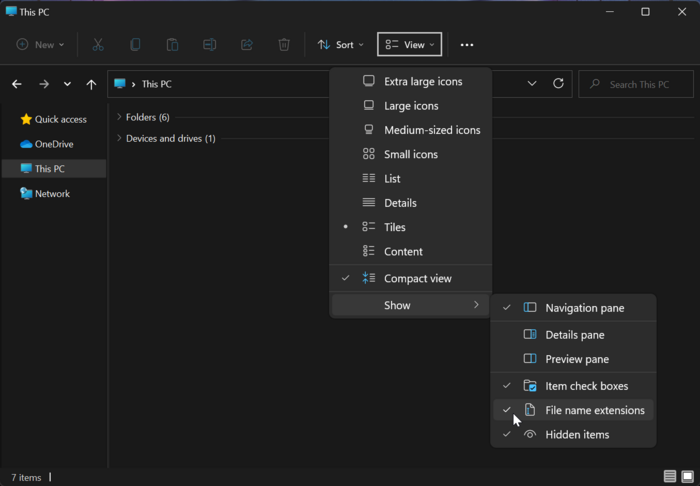
- Launch File Explorer by opening any directory, such as your SD card directory
- Click the "View" option in the toolbar
- Go to "Show"
- Click "File name extensions" to enable it

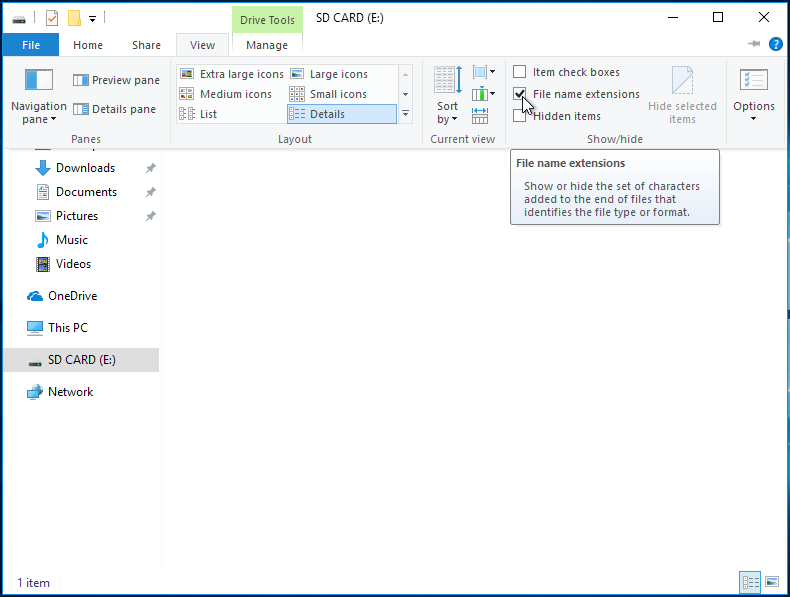
- Launch File Explorer by opening any directory, such as your SD card directory
- Click the "View" option on the ribbon menu
- Check the box labeled "File name extensions"

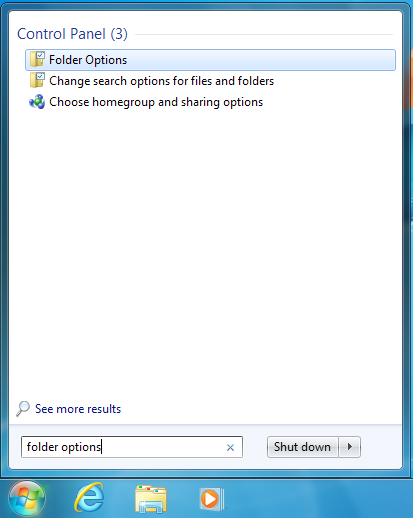
- Open the start menu by clicking on it or using the Windows key
- Search for "Folder Options" and select the corresponding result
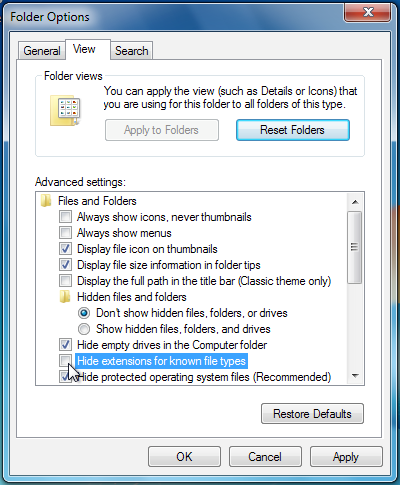
- Click the "View" option at the top of the Folder Options menu
- Uncheck the box labeled "Hide extensions for known file types"