
3DS:Alternate Exploits/Installing boot9strap (3dsropxploitinjector-USM): Difference between revisions
From Hacks Guide Wiki
More actions
^ |
m add category |
||
| (One intermediate revision by one other user not shown) | |||
| Line 2: | Line 2: | ||
*The latest release of [https://github.com/d0k3/SafeB9SInstaller/releases/download/v0.0.7/SafeB9SInstaller-20170605-122940.zip SafeB9SInstaller] (direct download) | *The latest release of [https://github.com/d0k3/SafeB9SInstaller/releases/download/v0.0.7/SafeB9SInstaller-20170605-122940.zip SafeB9SInstaller] (direct download) | ||
*The latest release of [https://github.com/SciresM/boot9strap/releases/download/1.4/boot9strap-1.4.zip boot9strap] (direct download) | *The latest release of [https://github.com/SciresM/boot9strap/releases/download/1.4/boot9strap-1.4.zip boot9strap] (direct download) | ||
*The latest release of [https://github.com/LumaTeam/Luma3DS/releases/latest Luma3DS] (the Luma3DS <code>.zip</code> file) | |||
*The latest release of [https://github.com/zoogie/unSAFE_MODE/releases/v1.3 unSAFE_MODE] | *The latest release of [https://github.com/zoogie/unSAFE_MODE/releases/v1.3 unSAFE_MODE] | ||
**You may already have this from a prior section of the guide | **You may already have this from a prior section of the guide | ||
| Line 13: | Line 14: | ||
===Section I - Prep Work=== | ===Section I - Prep Work=== | ||
#Insert your SD card into your computer | #Insert your SD card into your computer | ||
#Copy <code>boot.firm</code> and <code>boot.3dsx</code> from the Luma3DS <code>.zip</code> to the root of your SD card | |||
#Create a folder named <code>3ds</code> on the root of your SD card if it does not already exist | #Create a folder named <code>3ds</code> on the root of your SD card if it does not already exist | ||
#*This folder stores homebrew applications and data; it is different from the Nintendo 3DS folder that the device automatically generates | #*This folder stores homebrew applications and data; it is different from the Nintendo 3DS folder that the device automatically generates | ||
| Line 64: | Line 66: | ||
<span style="font-size:200%;">Continue to [[3dsguide:finalizing-setup|Finalizing Setup]]</span> | <span style="font-size:200%;">Continue to [[3dsguide:finalizing-setup|Finalizing Setup]]</span> | ||
[[Category:Nintendo 3DS guides]] | |||
Latest revision as of 17:01, 6 September 2024
What You Need
- The latest release of SafeB9SInstaller (direct download)
- The latest release of boot9strap (direct download)
- The latest release of Luma3DS (the Luma3DS
.zipfile) - The latest release of unSAFE_MODE
- You may already have this from a prior section of the guide
Instructions
Section 0 - 3DS ROP xPloit Injector
- Press (X) to inject unSAFE_MODE
- If the injection was successful, the screen will turn green and the target 3DS will automatically power off
Section I - Prep Work
- Insert your SD card into your computer
- Copy
boot.firmandboot.3dsxfrom the Luma3DS.zipto the root of your SD card - Create a folder named
3dson the root of your SD card if it does not already exist- This folder stores homebrew applications and data; it is different from the Nintendo 3DS folder that the device automatically generates
- Copy the
slotToolfolder from the unSAFE_MODE.zipto the3dsfolder on your SD card - Create a folder named
boot9strapon the root of your SD card - Copy
boot9strap.firmandboot9strap.firm.shafrom the boot9strap.zipto the/boot9strap/folder on your SD card - Copy
SafeB9SInstaller.binfrom the SafeB9SInstaller.zipto the root of your SD card - Copy
usm.binfrom the unSAFE_MODE.zipto the root of your SD card - Reinsert the SD card into your device
Section II - unSAFE_MODE
- With your device still powered off, hold the following buttons: (Left Shoulder) + (Right Shoulder) + (D-Pad Up) + (A), then press (Power)
- Keep holding the buttons until the device boots into Safe Mode
- Press "OK" to accept the update
- There is no update. This is part of the exploit
- Press "I accept" to accept the terms and conditions
- The update will eventually fail, with the error code
003-1099. This is intended behaviour - When asked "Would you like to configure Internet settings?", select "Yes"
- On the following menu, navigate to
Connection 1->Change Settings->Next Page (right arrow)->Proxy Settings->Detailed Setup- This is a visual representation
- If the exploit was successful, your device will have booted into SafeB9SInstaller
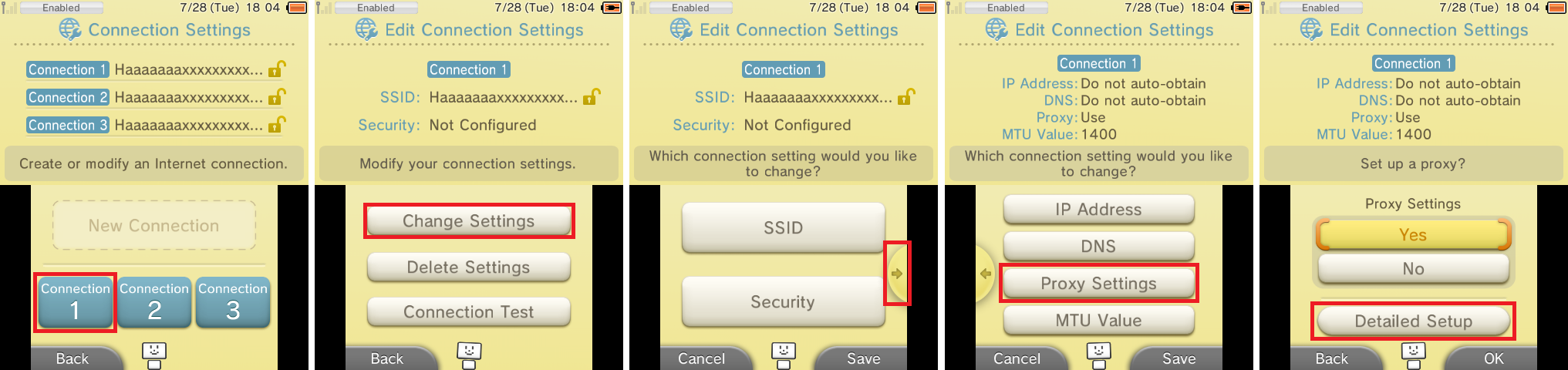
Section III - Installing boot9strap
- When prompted, input the key combo given on the top screen to install boot9strap
- Once it is complete, press (A) to reboot your device
- Your device should have rebooted into the Luma3DS configuration menu
- Luma3DS configuration menu are settings for the Luma3DS custom firmware. Many of these settings may be useful for customization or debugging
- For the purpose of this guide, these settings will be left on default settings
- If your device shuts down when you try to power it on, ensure that you have copied
boot.firmfrom the Luma3DS.zipto the root of your SD card
- Press (Start) to save and reboot
- If you get an error, just continue to the next section
 |
At this point, your console will boot to Luma3DS by default.
|
Section IV - Restoring WiFi Configuration Profiles
- Launch the Download Play application
- Wait until you see the two buttons
- Do not press either of the buttons
- Press (Left Shoulder) + (D-Pad Down) + (Select) at the same time to open the Rosalina menu
- Select "Miscellaneous options"
- Select "Switch the hb. title to the current app."
- Press (B) to continue
- Press (B) to return to the Rosalina main menu
- Press (B) to exit the Rosalina menu
- Press (Home), then close Download Play
- Relaunch the Download Play application
- Your device should load the Homebrew Launcher
- Launch slotTool from the list of homebrew
- Select "RESTORE original wifi slots 1,2,3"
- Your device will then reboot
Continue to Finalizing Setup