Created page with "<translate> This is an add-on section for formatting an SD card to work with the 3DS. If the 3DS already recognizes the SD card, this guide is not required. This page is for Windows users only. If you are not on Windows, check out the Formatting SD (Linux) or Formatting SD (Mac) pages. </translate> == What You Need == *<translate>'''For SD cards 32GB or smaller''': the latest..."
This is an add-on section for formatting an SD card to work with the 3DS.
<!--T:1-->
This is an add-on section for formatting an SD card to FAT32.
If the 3DS already recognizes the SD card, this guide is not required.
<!--T:3-->
This page is for Windows users only. If you are not on Windows, check out the [[Special:MyLanguage/Formatting an SD card/Linux|Linux]] or [[Special:MyLanguage/Formatting an SD card/Mac|Mac]] pages.
</translate>
== Choose your SD card size ==
<tabber>
|-|<translate><!--T:40--> 64GB or larger</translate>=
=== What You Need ===
*<translate><!--T:4--> The latest version of <tvar name="sdformatter">[https://www.sdcard.org/downloads/formatter/sd-memory-card-formatter-for-windows-download/ SD Memory Card Formatter]</tvar></translate>
*<translate><!--T:5--> The latest version of <tvar name="guiformat">[http://ridgecrop.co.uk/index.htm?guiformat.htm guiformat]</tvar></translate>
This page is for Windows users only. If you are not on Windows, check out the [[Special:MyLanguage/Format an SD card/Linux|Formatting SD (Linux)]] or [[Special:MyLanguage/Format an SD card/Mac|Formatting SD (Mac)]] pages.
<translate>
=== Instructions === <!--T:39-->
</translate>
</translate>
== What You Need ==
<ol>
*<translate>'''For SD cards 32GB or smaller''': the latest version of <tvar name="sdformatter">[https://www.sdcard.org/downloads/formatter/sd-memory-card-formatter-for-windows-download/ SD Formatter]</tvar></translate>
<li><translate><!--T:22--> Insert your SD card into your computer</translate></li>
*<translate>'''For SD cards 64GB or larger''': The latest version of <tvar name="guiformat">[http://ridgecrop.co.uk/index.htm?guiformat.htm guiformat]</tvar></translate>
<li><translate><!--T:23--> If the SD card has any files and folders on it, copy everything to a folder on your computer</translate></li>
<li><translate><!--T:43--> Run <code>SD Card Formatter Setup</code> (the <code>.exe</code> file) in the downloaded .zip file with Administrator privileges, then install the program</translate></li>
<li><translate><!--T:44--> Run <code>SD Card Formatter</code> from the Start Menu</translate></li>
<li><translate><!--T:45--> Select your SD card’s drive letter for "Select card"</translate>{{warning|<translate nowrap><!--T:46--> Make sure you choose the correct drive letter, otherwise you might accidentally erase the wrong drive!</translate>}}</li>
<li><translate><!--T:47--> Ensure that "Quick Format" is selected</translate></li>
<li><translate><!--T:50--> Wait for the format to finish</translate></li>
<li><translate><!--T:51--> Click "OK"</translate></li>{{info|<translate nowrap><!--T:52--> '''You're not done yet!''' Your SD card will be formatted to exFAT at this point. The following steps will format it to FAT32.</translate>}}
<li><translate><!--T:53--> Close SD Card Formatter</translate></li>
<li><translate><!--T:24--> Run <code>guiformat.exe</code></translate></li>
<li><translate><!--T:25--> Select your SD card’s drive letter for "Drive"</translate>{{warning|<translate nowrap><!--T:26--> Make sure you choose the correct drive letter, otherwise you might accidentally erase the wrong drive!</translate>}}</li>
<li><translate><!--T:27--> Select a size for "Allocation unit size"</translate>
<ul>
<li><translate><!--T:28--> If the SD card is 64GB, choose 32768</translate></li>
<li><translate><!--T:29--> If the SD card is larger than 64GB, choose 65536 (note that if GUIFormat reverts to 32768, this does not mean it selected the wrong cluster size!)</translate></li>
</ul></li>
<li><translate><!--T:31--> Ensure that "Quick Format" is selected</translate></li>
{{info|<translate nowrap> <!--T:57--> To confirm that your SD card was formatted correctly, navigate to This PC, right-click the SD card drive, and select Properties. Ensure that the file system is set to FAT32. </translate>}}
<li><translate><!--T:36--> If the SD card had any files and folders on it before the format, copy everything back from your computer, unless you were linked to this by another guide that needs the SD to be formatted and blank</translate></li>
</ol>
<translate>
<translate>
== Instructions (32GB or smaller) ==
=== Common errors with guiformat === <!--T:37--> </translate>
==== Failed to open device: GetLastError()=32 ====
<translate>
<!--T:38-->
Close everything that may be using the SD card, such as any File Explorer windows. If it does not resolve the issue, try formatting the card to NTFS, then run GUIFormat again.
</translate>
</translate>
#<translate>Insert your SD card into your computer</translate>
#<translate>If the SD card has any files and folders on it, copy everything to a folder on your computer</translate>
#<translate>Run <code>SD Card Formatter Setup</code> (the <code>.exe</code> file) in the downloaded .zip file with Administrator privileges, then install the program</translate>
#<translate>Run <code>SD Card Formatter</code> from the Start Menu</translate>
#<translate>Select your SD card’s drive letter for "Select card"</translate>
==== GetLastError()=1117 ====
<translate>
<translate>
Make sure you choose the correct drive letter, otherwise you might accidentally erase the wrong drive!
<!--T:41-->
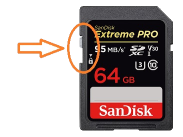
Your SD card write-protection switch may be [https://3ds.hacks.guide/images/sdlock.png enabled]. The lock must be flipped upwards to allow writing to the SD card (including formatting).
</translate>
</translate>
#<translate>Enter anything for "Volume label"</translate>
|-|<translate><!--T:42--> 32GB or smaller</translate>=
#<translate>Ensure that "Quick Format" is selected</translate>
#<translate>Click "Format"</translate>
=== What You Need ===
#<translate>Click "OK"</translate>
*<translate><!--T:56--> The latest version of <tvar name="sdformatter">[https://www.sdcard.org/downloads/formatter/sd-memory-card-formatter-for-windows-download/ SD Memory Card Formatter]</tvar></translate>
#<translate>Wait for the format to finish</translate>
#<translate>Click "OK"</translate>
#<translate>Close SD Card Formatter</translate>
#<translate>If the SD card had any files and folders on it before the format, copy everything back from your computer</translate>
<translate>
<translate>
== Instructions (64GB or larger) == </translate>
=== Instructions === <!--T:55-->
</translate>
#<translate>Insert your SD card into your computer</translate>
<ol>
#<translate>If the SD card has any files and folders on it, copy everything to a folder on your computer</translate>
<li><translate><!--T:7--> Insert your SD card into your computer</translate></li>
<li><translate><!--T:8--> If the SD card has any files and folders on it, copy everything to a folder on your computer</translate></li>
#<translate>Select your SD card’s drive letter for "Drive"</translate>{{warning|<translate nowrap>Make sure you choose the correct drive letter, otherwise you might accidentally erase the wrong drive!</translate>}}
<li><translate><!--T:9--> Run <code>SD Card Formatter Setup</code> (the <code>.exe</code> file) in the downloaded .zip file with Administrator privileges, then install the program</translate></li>
#<translate>Select a size for "Allocation unit size"</translate>
<li><translate><!--T:10--> Run <code>SD Card Formatter</code> from the Start Menu</translate></li>
#*<translate>If the SD card is 64GB, choose 32768</translate>
<li><translate><!--T:11--> Select your SD card’s drive letter for "Select card"</translate>{{warning|<translate nowrap><!--T:12--> Make sure you choose the correct drive letter, otherwise you might accidentally erase the wrong drive!</translate>}}</li>
#*<translate>If the SD card is larger than 64GB, choose 65536</translate>
<li><translate><!--T:14--> Ensure that "Quick Format" is selected</translate></li>
#<translate>Enter anything for "Volume label"</translate>
#<translate>Wait for the format to finish</translate>
<li><translate><!--T:19--> Close SD Card Formatter</translate></li>
#<translate>Click "Close"</translate>
{{info|<translate nowrap> <!--T:58--> To confirm that your SD card was formatted correctly, navigate to This PC, right-click the SD card drive, and select Properties. Ensure that the file system is set to FAT32. </translate>}}
#<translate>If the SD card had any files and folders on it before the format, copy everything back from your computer</translate>
<li><translate><!--T:20--> If the SD card had any files and folders on it before the format, copy everything back from your computer, unless you were linked to this by another guide that needs the SD to be formatted and blank</translate></li>
</ol>
</tabber>
<translate>
<translate>
=== Common errors with guiformat === </translate>
== SD Card not formatting or has some other issue. == <!--T:59-->
==== Failed to open device: GetLastError()=32 ====
<translate>
<!--T:60-->
Close everything that may be using the SD card, such as any File Explorer windows.
Refer to the {{ml|SD Clean/Windows|SD Clean}} guide.
To confirm that your SD card was formatted correctly, navigate to This PC, right-click the SD card drive, and select Properties. Ensure that the file system is set to FAT32.
If the SD card had any files and folders on it before the format, copy everything back from your computer, unless you were linked to this by another guide that needs the SD to be formatted and blank
Common errors with guiformat
Failed to open device: GetLastError()=32
Close everything that may be using the SD card, such as any File Explorer windows. If it does not resolve the issue, try formatting the card to NTFS, then run GUIFormat again.
GetLastError()=1117
Your SD card write-protection switch may be enabled. The lock must be flipped upwards to allow writing to the SD card (including formatting).
To confirm that your SD card was formatted correctly, navigate to This PC, right-click the SD card drive, and select Properties. Ensure that the file system is set to FAT32.
If the SD card had any files and folders on it before the format, copy everything back from your computer, unless you were linked to this by another guide that needs the SD to be formatted and blank