Esta es una sección complementaria para formatear una tarjeta SD a FAT32.
Esta página es solo para usuarios de Windows. Si no estás en Windows, ve a las páginas de [[Special:MyLanguage/Formatting an SD card/Linux|Linux]] o [[Special:MyLanguage/Formatting an SD card/Mac|Mac]].
== Choose your SD card size ==
<tabber>
|-|64GB o más=
=== What You Need ===
*La versión más reciente de [https://www.sdcard.org/downloads/formatter/sd-memory-card-formatter-for-windows-download/ SD Memory Card Formatter]
*La versión más reciente de [http://ridgecrop.co.uk/index.htm?guiformat.htm guiformat]
<span id="Instructions"></span>
=== Instrucciones ===
<ol>
<li>Inserta tu tarjeta SD en tu computadora</li>
<li>Si la tarjeta SD tiene archivos y carpetas, copia todo a una carpeta en tu computadora</li>
<li>Abre <code>SD Card Formatter Setup</code> (el archivo <code>.exe</code>) en el archivo .zip que descargaste con privilegios de Administrador, e instala el programa</li>
<li>Abre <code>SD Card Formatter</code> desde el Menú Inicio</li>
<li>Selecciona la letra de unidad de tu tarjeta SD en "Seleccionar tarjeta"{{warning|Asegúrate de seleccionar la letra de unidad correcta, de lo contrario, podrías accidentalmente eliminar la unidad incorrecta!}}</li>
<li>Asegúrate que el "Formateo Rápido" este seleccionado</li>
<li>Presiona "Formatear"</li>
<li>Presiona "OK"</li>
<li>Espera a que el formateo termine</li>
<li>Presiona "OK"</li>{{info|'''Todavía no estás listo!''' Tu tarjeta SD será formateada a exFAT en este punto. Los siguientes pasos la formatearan a FAT32.}}
<li>Cierra SD Card Formatter</li>
<li>Abre <code>guiformat.exe</code></li>
<li>Selecciona la letra de unidad de tu tarjeta SD en "Unidad"{{warning|Asegúrate de seleccionar la letra de unidad correcta, de lo contrario, podrías accidentalmente eliminar la unidad incorrecta!}}</li>
<li>Selecciona un tamaño en "Tamaño de unidad de asignación"
<ul>
<li>Si la tarjeta SD es de 64GB, selecciona 32768</li>
<li>Si la tarjeta SD es de más de 64GB, selecciona 65536 (ten en cuenta que si GUIFormat lo revierte a 32768, no significa que seleccionaste el tamaño de asignación incorrecto!)</li>
</ul></li>
<li>Asegúrate que el "Formateo Rápido" este seleccionado</li>
<li>Presiona "Empezar"</li>
<li>Presiona "OK"</li>
<li>Espera a que el formateo termine</li>
<li>Presiona "Cerrar"</li>
{{info| To confirm that your SD card was formatted correctly, navigate to This PC, right-click the SD card drive, and select Properties. Ensure that the file system is set to FAT32. }}
<li><span lang="en" dir="ltr" class="mw-content-ltr">If the SD card had any files and folders on it before the format, copy everything back from your computer, unless you were linked to this by another guide that needs the SD to be formatted and blank</span></li>
</ol>
<div lang="en" dir="ltr" class="mw-content-ltr">
=== Common errors with guiformat ===
</div>
==== Failed to open device: GetLastError()=32 ====
<div lang="en" dir="ltr" class="mw-content-ltr">
Close everything that may be using the SD card, such as any File Explorer windows. If it does not resolve the issue, try formatting the card to NTFS, then run GUIFormat again.
</div>
==== GetLastError()=1117 ====
<div lang="en" dir="ltr" class="mw-content-ltr">
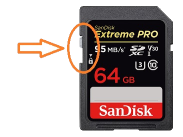
Your SD card write-protection switch may be [https://3ds.hacks.guide/images/sdlock.png enabled]. The lock must be flipped upwards to allow writing to the SD card (including formatting).
</div>
|-|<span lang="en" dir="ltr" class="mw-content-ltr">32GB or smaller</span>=
=== What You Need ===
*<span lang="en" dir="ltr" class="mw-content-ltr">The latest version of [https://www.sdcard.org/downloads/formatter/sd-memory-card-formatter-for-windows-download/ SD Memory Card Formatter]</span>
<div lang="en" dir="ltr" class="mw-content-ltr">
=== Instructions ===
</div>
<ol>
<li><span lang="en" dir="ltr" class="mw-content-ltr">Insert your SD card into your computer</span></li>
<li><span lang="en" dir="ltr" class="mw-content-ltr">If the SD card has any files and folders on it, copy everything to a folder on your computer</span></li>
<li><span lang="en" dir="ltr" class="mw-content-ltr">Run <code>SD Card Formatter Setup</code> (the <code>.exe</code> file) in the downloaded .zip file with Administrator privileges, then install the program</span></li>
<li><span lang="en" dir="ltr" class="mw-content-ltr">Run <code>SD Card Formatter</code> from the Start Menu</span></li>
<li><span lang="en" dir="ltr" class="mw-content-ltr">Select your SD card’s drive letter for "Select card"</span>{{warning|Make sure you choose the correct drive letter, otherwise you might accidentally erase the wrong drive!}}</li>
<li><span lang="en" dir="ltr" class="mw-content-ltr">Ensure that "Quick Format" is selected</span></li>
{{info| To confirm that your SD card was formatted correctly, navigate to This PC, right-click the SD card drive, and select Properties. Ensure that the file system is set to FAT32. }}
<li><span lang="en" dir="ltr" class="mw-content-ltr">If the SD card had any files and folders on it before the format, copy everything back from your computer, unless you were linked to this by another guide that needs the SD to be formatted and blank</span></li>
</ol>
</tabber>
==SD Card not formatting or has some other issue.==
Si la tarjeta SD tiene archivos y carpetas, copia todo a una carpeta en tu computadora
Abre SD Card Formatter Setup (el archivo .exe) en el archivo .zip que descargaste con privilegios de Administrador, e instala el programa
Abre SD Card Formatter desde el Menú Inicio
Selecciona la letra de unidad de tu tarjeta SD en "Seleccionar tarjeta"
Asegúrate de seleccionar la letra de unidad correcta, de lo contrario, podrías accidentalmente eliminar la unidad incorrecta!
Asegúrate que el "Formateo Rápido" este seleccionado
Presiona "Formatear"
Presiona "OK"
Espera a que el formateo termine
Presiona "OK"
Todavía no estás listo! Tu tarjeta SD será formateada a exFAT en este punto. Los siguientes pasos la formatearan a FAT32.
Cierra SD Card Formatter
Abre guiformat.exe
Selecciona la letra de unidad de tu tarjeta SD en "Unidad"
Asegúrate de seleccionar la letra de unidad correcta, de lo contrario, podrías accidentalmente eliminar la unidad incorrecta!
Selecciona un tamaño en "Tamaño de unidad de asignación"
Si la tarjeta SD es de 64GB, selecciona 32768
Si la tarjeta SD es de más de 64GB, selecciona 65536 (ten en cuenta que si GUIFormat lo revierte a 32768, no significa que seleccionaste el tamaño de asignación incorrecto!)
Asegúrate que el "Formateo Rápido" este seleccionado
Presiona "Empezar"
Presiona "OK"
Espera a que el formateo termine
Presiona "Cerrar"
To confirm that your SD card was formatted correctly, navigate to This PC, right-click the SD card drive, and select Properties. Ensure that the file system is set to FAT32.
If the SD card had any files and folders on it before the format, copy everything back from your computer, unless you were linked to this by another guide that needs the SD to be formatted and blank
Common errors with guiformat
Failed to open device: GetLastError()=32
Close everything that may be using the SD card, such as any File Explorer windows. If it does not resolve the issue, try formatting the card to NTFS, then run GUIFormat again.
GetLastError()=1117
Your SD card write-protection switch may be enabled. The lock must be flipped upwards to allow writing to the SD card (including formatting).
"en" dir="ltr" class="mw-content-ltr">32GB or smaller=
If the SD card has any files and folders on it, copy everything to a folder on your computer
Run SD Card Formatter Setup (the .exe file) in the downloaded .zip file with Administrator privileges, then install the program
Run SD Card Formatter from the Start Menu
Select your SD card’s drive letter for "Select card"
Make sure you choose the correct drive letter, otherwise you might accidentally erase the wrong drive!
Ensure that "Quick Format" is selected
Click "Format"
Click "OK"
Wait for the format to finish
Click "OK"
Close SD Card Formatter
To confirm that your SD card was formatted correctly, navigate to This PC, right-click the SD card drive, and select Properties. Ensure that the file system is set to FAT32.
If the SD card had any files and folders on it before the format, copy everything back from your computer, unless you were linked to this by another guide that needs the SD to be formatted and blank