
3DS:Alternate Exploits/Installing boot9strap (HBL-USM): Difference between revisions
From Hacks Guide Wiki
More actions
m This page is now inaccessible by links from other HBL pages, so add a warning. (Don't really want to nuke all the text though, just in case(?)) Tag: Reverted |
let console escape from schrodinger's state of being on and off simultaneously |
||
| (19 intermediate revisions by 7 users not shown) | |||
| Line 1: | Line 1: | ||
==Required Reading== | ==Required Reading== | ||
{{System version outdated article|console=ctr|sysversion=11. | {{System version outdated article|console=ctr|sysversion=11.17.0-50}} | ||
In order to exploit the SAFE_MODE firmware of our system, we need to inject an exploited WiFi profile. | In order to exploit the SAFE_MODE firmware of our system, we need to inject an exploited WiFi profile. | ||
| Line 11: | Line 9: | ||
Once the WiFi profile has been injected, we will use SAFE_MODE, which is a recovery feature present on all 3DS consoles, to activate the exploited WiFi profile. | Once the WiFi profile has been injected, we will use SAFE_MODE, which is a recovery feature present on all 3DS consoles, to activate the exploited WiFi profile. | ||
{{warning|text=If your (Right/Left Shoulder), (D-Pad Up) or (A) buttons do not work, you will need to use another method. For assistance with this matter, join | {{warning|text=If your (Right/Left Shoulder), (D-Pad Up) or (A) buttons do not work, you will need to use another method. For assistance with this matter, join {{ml|Get support|Nintendo Homebrew on Discord}} and ask, in English, for help.}} | ||
==What You Need== | ==What You Need== | ||
| Line 23: | Line 21: | ||
===Section I - Prep Work=== | ===Section I - Prep Work=== | ||
# | #Power off your device | ||
#Insert your SD card into your computer | |||
#Create a folder named <code>3ds</code> on the root of your SD card if it does not already exist | |||
#*The root of the SD card refers to the initial directory on your SD card where you can see the Nintendo 3DS folder, but are not inside of it | |||
#*This folder stores homebrew applications and data; it is different from the Nintendo 3DS folder that the device automatically generates | |||
#Copy the <code>slotTool</code> folder from the unSAFE_MODE <code>.zip</code> to the <code>3ds</code> folder on your SD card | |||
#Create a folder named <code>boot9strap</code> on the root of your SD card | |||
#Copy <code>boot9strap.firm</code> and <code>boot9strap.firm.sha</code> from the boot9strap <code>.zip</code> to the <code>/boot9strap/</code> folder on your SD card | |||
#Copy <code>SafeB9SInstaller.bin</code> from the SafeB9SInstaller <code>.zip</code> to the root of your SD card | |||
#Copy <code>usm.bin</code> from the unSAFE_MODE <code>.zip</code> to the root of your SD card | |||
#Reinsert the SD card into your device | |||
#Turn on your device | |||
#Launch the Homebrew Launcher with any method | |||
#Launch slotTool from the list of homebrew | #Launch slotTool from the list of homebrew | ||
#*If you get stuck on a red screen, delete <code>slotTool.xml</code> from the <code>/3ds/slotTool/</code> directory, then retry this section | #*If you get stuck on a red screen, delete <code>slotTool.xml</code> from the <code>/3ds/slotTool/</code> directory, then retry this section | ||
#*<code>slotTool.xml</code> may have the icon of a web browser and not show the <code>.xml</code> extension | |||
#Select the "INSTALL exploit to wifi slots 1,2,3 & shutdown" option | #Select the "INSTALL exploit to wifi slots 1,2,3 & shutdown" option | ||
#*You will see some on-screen text and then your system will shut down | #*You will see some on-screen text and then your system will shut down | ||
# | #Power on your device | ||
# | #Launch System Settings on your device | ||
# | #Navigate to Internet Settings -> Connection Settings | ||
# | #Ensure that all three connections are named “Haaaaaaaxxxxxxxxx…” | ||
# | #*Do NOT change these settings! | ||
# | #*If all three connections are NOT all named "Haaaaaaaxxxxxxxxx…", STOP! Something went wrong in this section and MUST be fixed before you can continue | ||
#Power off your device | |||
===Section II - unSAFE_MODE=== | ===Section II - unSAFE_MODE=== | ||
| Line 51: | Line 63: | ||
#Once it is complete, press (A) to reboot your device | #Once it is complete, press (A) to reboot your device | ||
#Your device should have rebooted into the Luma3DS configuration menu | #Your device should have rebooted into the Luma3DS configuration menu | ||
#*Luma3DS configuration menu are settings for the Luma3DS custom firmware. Many of these settings may be useful for customization or debugging | |||
#*For the purpose of this guide, these settings will be left on default settings | |||
#*If your device shuts down when you try to power it on, ensure that you have copied <code>boot.firm</code> from the Luma3DS <code>.zip</code> to the root of your SD card | #*If your device shuts down when you try to power it on, ensure that you have copied <code>boot.firm</code> from the Luma3DS <code>.zip</code> to the root of your SD card | ||
#Press (Start) to save and reboot | #Press (Start) to save and reboot | ||
| Line 80: | Line 94: | ||
<span style="font-size:200%;">Continue to [[3dsguide:finalizing-setup|Finalizing Setup]]</span> | <span style="font-size:200%;">Continue to [[3dsguide:finalizing-setup|Finalizing Setup]]</span> | ||
[[Category:Nintendo 3DS guides]] | |||
Latest revision as of 23:58, 30 July 2025
Required Reading
In order to exploit the SAFE_MODE firmware of our system, we need to inject an exploited WiFi profile.
As we already have homebrew access, we can use slotTool to do this.
Once the WiFi profile has been injected, we will use SAFE_MODE, which is a recovery feature present on all 3DS consoles, to activate the exploited WiFi profile.
 |
If your (Right/Left Shoulder), (D-Pad Up) or (A) buttons do not work, you will need to use another method. For assistance with this matter, join Nintendo Homebrew on Discord and ask, in English, for help. |
What You Need
- The latest release of SafeB9SInstaller (direct download)
- The latest release of boot9strap (direct download)
- The latest release of unSAFE_MODE
- You may already have this from a prior section of the guide
Instructions
Section I - Prep Work
- Power off your device
- Insert your SD card into your computer
- Create a folder named
3dson the root of your SD card if it does not already exist- The root of the SD card refers to the initial directory on your SD card where you can see the Nintendo 3DS folder, but are not inside of it
- This folder stores homebrew applications and data; it is different from the Nintendo 3DS folder that the device automatically generates
- Copy the
slotToolfolder from the unSAFE_MODE.zipto the3dsfolder on your SD card - Create a folder named
boot9strapon the root of your SD card - Copy
boot9strap.firmandboot9strap.firm.shafrom the boot9strap.zipto the/boot9strap/folder on your SD card - Copy
SafeB9SInstaller.binfrom the SafeB9SInstaller.zipto the root of your SD card - Copy
usm.binfrom the unSAFE_MODE.zipto the root of your SD card - Reinsert the SD card into your device
- Turn on your device
- Launch the Homebrew Launcher with any method
- Launch slotTool from the list of homebrew
- If you get stuck on a red screen, delete
slotTool.xmlfrom the/3ds/slotTool/directory, then retry this section slotTool.xmlmay have the icon of a web browser and not show the.xmlextension
- If you get stuck on a red screen, delete
- Select the "INSTALL exploit to wifi slots 1,2,3 & shutdown" option
- You will see some on-screen text and then your system will shut down
- Power on your device
- Launch System Settings on your device
- Navigate to Internet Settings -> Connection Settings
- Ensure that all three connections are named “Haaaaaaaxxxxxxxxx…”
- Do NOT change these settings!
- If all three connections are NOT all named "Haaaaaaaxxxxxxxxx…", STOP! Something went wrong in this section and MUST be fixed before you can continue
- Power off your device
Section II - unSAFE_MODE
- With your device still powered off, hold the following buttons: (Left Shoulder) + (Right Shoulder) + (D-Pad Up) + (A), then press (Power)
- Keep holding the buttons until the device boots into Safe Mode
- Press "OK" to accept the update
- There is no update. This is part of the exploit
- Press "I accept" to accept the terms and conditions
- The update will eventually fail, with the error code
003-1099. This is intended behaviour - When asked "Would you like to configure Internet settings?", select "Yes"
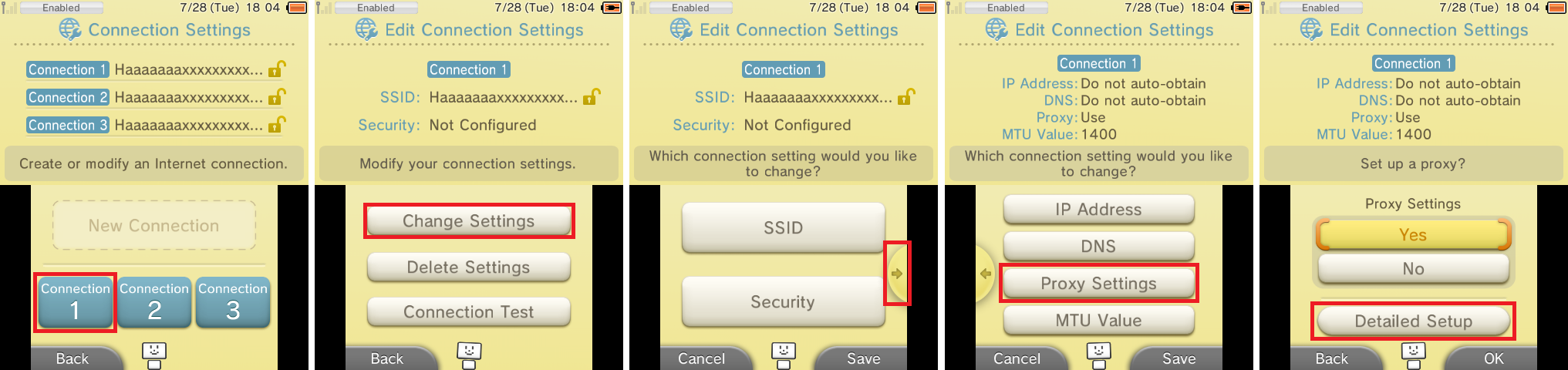
- On the following menu, navigate to
Connection 1->Change Settings->Next Page (right arrow)->Proxy Settings->Detailed Setup- This is a visual representation
- If the exploit was successful, your device will have booted into SafeB9SInstaller
Section III - Installing boot9strap
- When prompted, input the key combo given on the top screen to install boot9strap
- Once it is complete, press (A) to reboot your device
- Your device should have rebooted into the Luma3DS configuration menu
- Luma3DS configuration menu are settings for the Luma3DS custom firmware. Many of these settings may be useful for customization or debugging
- For the purpose of this guide, these settings will be left on default settings
- If your device shuts down when you try to power it on, ensure that you have copied
boot.firmfrom the Luma3DS.zipto the root of your SD card
- Press (Start) to save and reboot
- If you get an error, just continue to the next section
 |
At this point, your console will boot to Luma3DS by default.
|
Section IV - Restoring WiFi Configuration Profiles
- Launch the Download Play application
- Wait until you see the two buttons
- Do not press either of the buttons
- Press (Left Shoulder) + (D-Pad Down) + (Select) at the same time to open the Rosalina menu
- Select "Miscellaneous options"
- Select "Switch the hb. title to the current app."
- Press (B) to continue
- Press (B) to return to the Rosalina main menu
- Press (B) to exit the Rosalina menu
- Press (Home), then close Download Play
- Relaunch the Download Play application
- Your device should load the Homebrew Launcher
- Launch slotTool from the list of homebrew
- Select "RESTORE original wifi slots 1,2,3"
- Your device will then reboot
Continue to Finalizing Setup