Installed the Homebrew Channel? Here is some stuff you can do!
<translate>
<!--T:1-->
This is an add-on section for formatting an SD card to FAT32.
This is not a complete list, but it should give you a general idea on what you can do.
<!--T:3-->
This page is for Windows users only. If you are not on Windows, check out the [[Special:MyLanguage/Formatting an SD card/Linux|Linux]] or [[Special:MyLanguage/Formatting an SD card/Mac|Mac]] pages.
</translate>
{| style="width: 100%; table-layout: fixed;"
== Choose your SD card size ==
<tabber>
|-|<translate><!--T:40--> 64GB or larger</translate>=
*<translate><!--T:4--> The latest version of <tvar name="sdformatter">[https://www.sdcard.org/downloads/formatter/sd-memory-card-formatter-for-windows-download/ SD Memory Card Formatter]</tvar></translate>
*<translate><!--T:5--> The latest version of <tvar name="guiformat">[http://ridgecrop.co.uk/index.htm?guiformat.htm guiformat]</tvar></translate>
* [https://oscwii.org/library/app/wiimc WiiMC] - Turn your Wii into a media center
<translate>
* [[wiiguide:wii-loaders|USB Loaders]] - Play backups of your disks on your console from a USB drive or SD card
=== Instructions === <!--T:39-->
* [[Wii:Riivolution|Riivolution]] - Patch your disks to play ROM Hacks of games you own
== <span class="invert-dark">[[File:Font Awesome 5 solid wrench.svg|22px|link=|alt=Wrench icon.]]</span> Game mods, save editing, cheats==
<li><translate><!--T:22--> Insert your SD card into your computer</translate></li>
{{warning|Before you modify a game or its save, you should extract/back up your save data with [[Wii:SaveGame ManagerGX|SaveGame Manager GX]].}}
<li><translate><!--T:23--> If the SD card has any files and folders on it, copy everything to a folder on your computer</translate></li>
<li><translate><!--T:43--> Run <code>SD Card Formatter Setup</code> (the <code>.exe</code> file) in the downloaded .zip file with Administrator privileges, then install the program</translate></li>
<li><translate><!--T:44--> Run <code>SD Card Formatter</code> from the Start Menu</translate></li>
<li><translate><!--T:45--> Select your SD card’s drive letter for "Select card"</translate>{{warning|<translate nowrap><!--T:46--> Make sure you choose the correct drive letter, otherwise you might accidentally erase the wrong drive!</translate>}}</li>
<li><translate><!--T:47--> Ensure that "Quick Format" is selected</translate></li>
<li><translate><!--T:50--> Wait for the format to finish</translate></li>
<li><translate><!--T:51--> Click "OK"</translate></li>{{info|<translate nowrap><!--T:52--> '''You're not done yet!''' Your SD card will be formatted to exFAT at this point. The following steps will format it to FAT32.</translate>}}
<li><translate><!--T:53--> Close SD Card Formatter</translate></li>
<li><translate><!--T:24--> Run <code>guiformat.exe</code></translate></li>
<li><translate><!--T:25--> Select your SD card’s drive letter for "Drive"</translate>{{warning|<translate nowrap><!--T:26--> Make sure you choose the correct drive letter, otherwise you might accidentally erase the wrong drive!</translate>}}</li>
<li><translate><!--T:27--> Select a size for "Allocation unit size"</translate>
<ul>
<li><translate><!--T:28--> If the SD card is 64GB, choose 32768</translate></li>
<li><translate><!--T:29--> If the SD card is larger than 64GB, choose 65536 (note that if GUIFormat reverts to 32768, this does not mean it selected the wrong cluster size!)</translate></li>
</ul></li>
<li><translate><!--T:31--> Ensure that "Quick Format" is selected</translate></li>
<li><translate><!--T:36--> If the SD card had any files and folders on it before the format, copy everything back from your computer</translate></li>
</ol>
We have pages for games listing various game mods, save editors, and cheats available for them. Some examples:
<translate>
=== Common errors with guiformat === <!--T:37--> </translate>
==== Failed to open device: GetLastError()=32 ====
<translate>
<!--T:38-->
Close everything that may be using the SD card, such as any File Explorer windows. If it does not resolve the issue, try formatting the card to NTFS, then run GUIFormat again.
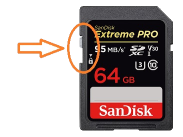
Your SD card write-protection switch may be [https://3ds.hacks.guide/images/sdlock.png enabled]. The lock must be flipped upwards to allow writing to the SD card (including formatting).
</translate>
See a full list at [[:Category:Wii games|Category:Wii games]]. Or use the search feature.
|-|<translate><!--T:42--> 32GB or smaller</translate>=
*<translate><!--T:56--> The latest version of <tvar name="sdformatter">[https://www.sdcard.org/downloads/formatter/sd-memory-card-formatter-for-windows-download/ SD Memory Card Formatter]</tvar></translate>
* [[Wii:Custom themes|Theming]] - Customize your Wii menu, USB loaders, & HBC with themes
* [[Wii:GBA Link Cable Usage|GBA Link Cable]] - Learn how to Dump GBA cartridges, load GBA homebrew, and more using the GBA GameCube Link Cable
<ol>
* [[:Category:Wii guides|List of guides]]
<li><translate><!--T:7--> Insert your SD card into your computer</translate></li>
|}
<li><translate><!--T:8--> If the SD card has any files and folders on it, copy everything to a folder on your computer</translate></li>
<li><translate><!--T:9--> Run <code>SD Card Formatter Setup</code> (the <code>.exe</code> file) in the downloaded .zip file with Administrator privileges, then install the program</translate></li>
<li><translate><!--T:10--> Run <code>SD Card Formatter</code> from the Start Menu</translate></li>
<li><translate><!--T:11--> Select your SD card’s drive letter for "Select card"</translate>{{warning|<translate nowrap><!--T:12--> Make sure you choose the correct drive letter, otherwise you might accidentally erase the wrong drive!</translate>}}</li>
<li><translate><!--T:14--> Ensure that "Quick Format" is selected</translate></li>
If the SD card has any files and folders on it, copy everything to a folder on your computer
Run SD Card Formatter Setup (the .exe file) in the downloaded .zip file with Administrator privileges, then install the program
Run SD Card Formatter from the Start Menu
Select your SD card’s drive letter for "Select card"
Make sure you choose the correct drive letter, otherwise you might accidentally erase the wrong drive!
Ensure that "Quick Format" is selected
Click "Format"
Click "OK"
Wait for the format to finish
Click "OK"
You're not done yet! Your SD card will be formatted to exFAT at this point. The following steps will format it to FAT32.
Close SD Card Formatter
Run guiformat.exe
Select your SD card’s drive letter for "Drive"
Make sure you choose the correct drive letter, otherwise you might accidentally erase the wrong drive!
Select a size for "Allocation unit size"
If the SD card is 64GB, choose 32768
If the SD card is larger than 64GB, choose 65536 (note that if GUIFormat reverts to 32768, this does not mean it selected the wrong cluster size!)
Ensure that "Quick Format" is selected
Click "Start"
Click "OK"
Wait for the format to finish
Click "Close"
If the SD card had any files and folders on it before the format, copy everything back from your computer
Common errors with guiformat
Failed to open device: GetLastError()=32
Close everything that may be using the SD card, such as any File Explorer windows. If it does not resolve the issue, try formatting the card to NTFS, then run GUIFormat again.
GetLastError()=1117
Your SD card write-protection switch may be enabled. The lock must be flipped upwards to allow writing to the SD card (including formatting).