*'''For SD cards 64GB or larger''': The latest version of [http://ridgecrop.co.uk/index.htm?guiformat.htm guiformat]
*'''For SD cards 64GB or larger''': The latest version of [http://ridgecrop.co.uk/index.htm?guiformat.htm guiformat]
== Instructions (32GB or smaller) ==
== Instructions ==
#Insert your SD card into your computer
#If the SD card has any files and folders on it, copy everything to a folder on your computer
#Run <code>SD Card Formatter Setup</code> (the <code>.exe</code> file) in the downloaded .zip file with Administrator privileges, then install the program
#Run <code>SD Card Formatter</code> from the Start Menu
#Select your SD card’s drive letter for "Select card"
Make sure you choose the correct drive letter, otherwise you might accidentally erase the wrong drive!
<tabber>
|-|64GB or larger=
#Enter anything for "Volume label"
<ol>
#Ensure that "Quick Format" is selected
<li>Insert your SD card into your computer</li>
#Click "Format"
<li>If the SD card has any files and folders on it, copy everything to a folder on your computer</li>
#Click "OK"
<li>Run <code>guiformat.exe</code></li>
#Wait for the format to finish
<li>Select your SD card’s drive letter for "Drive"{{warning|Make sure you choose the correct drive letter, otherwise you might accidentally erase the wrong drive!}}</li>
#Click "OK"
<li>Select a size for "Allocation unit size"
#Close SD Card Formatter
<ul>
#If the SD card had any files and folders on it before the format, copy everything back from your computer
<li>If the SD card is 64GB, choose 32768</li>
<li>If the SD card is larger than 64GB, choose 65536</li>
== Instructions (64GB or larger) ==
</ul></li>
<li>Enter anything for "Volume label"</li>
#Insert your SD card into your computer
<li>Ensure that "Quick Format" is selected</li>
#If the SD card has any files and folders on it, copy everything to a folder on your computer
<li>Click "Start"</li>
#Run <code>guiformat.exe</code>
<li>Click "OK"</li>
#Select your SD card’s drive letter for "Drive"{{warning|Make sure you choose the correct drive letter, otherwise you might accidentally erase the wrong drive!}}
<li>Wait for the format to finish</li>
#Select a size for "Allocation unit size"
<li>Click "Close"</li>
#*If the SD card is 64GB, choose 32768
<li>If the SD card had any files and folders on it before the format, copy everything back from your computer</li>
#*If the SD card is larger than 64GB, choose 65536
</ol>
#Enter anything for "Volume label"
#Ensure that "Quick Format" is selected
#Click "Start"
#Click "OK"
#Wait for the format to finish
#Click "Close"
#If the SD card had any files and folders on it before the format, copy everything back from your computer
=== Common errors with guiformat ===
=== Common errors with guiformat ===
==== Failed to open device: GetLastError()=32 ====
==== Failed to open device: GetLastError()=32 ====
Close everything that may be using the SD card, such as any File Explorer windows.
Close everything that may be using the SD card, such as any File Explorer windows.
==== GetLastError()=1117 ====
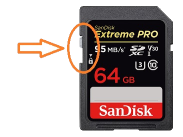
Your SD card write-protection switch may be [https://3ds.hacks.guide/images/sdlock.png enabled]. The lock must be flipped upwards to allow writing to the SD card (including formatting).
|-|32GB or smaller=
<ol>
<li>Insert your SD card into your computer</li>
<li>If the SD card has any files and folders on it, copy everything to a folder on your computer</li>
<li>Run <code>SD Card Formatter Setup</code> (the <code>.exe</code> file) in the downloaded .zip file with Administrator privileges, then install the program</li>
<li>Run <code>SD Card Formatter</code> from the Start Menu</li>
<li>Select your SD card’s drive letter for "Select card"{{warning|Make sure you choose the correct drive letter, otherwise you might accidentally erase the wrong drive!}}</li>
<li>Enter anything for "Volume label"</li>
<li>Ensure that "Quick Format" is selected</li>
<li>Click "Format"</li>
<li>Click "OK"</li>
<li>Wait for the format to finish</li>
<li>Click "OK"</li>
<li>Close SD Card Formatter</li>
<li>If the SD card had any files and folders on it before the format, copy everything back from your computer</li>